Recollector User’s Guide
Setting up a Collection - Overview
The very first time you run Recollector, a welcome screen will ask you whether you want to begin by creating your first collection:
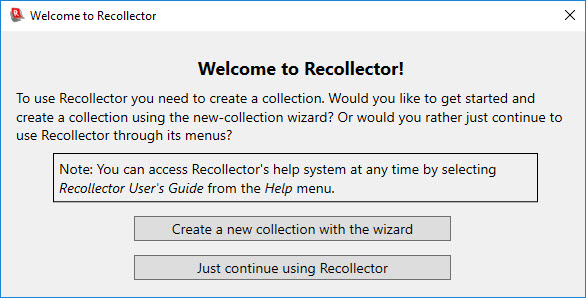
If you choose to create a collection, Recollector will begin the collection-creation wizard. If, instead, you click the Just continue using Recollector button, a blank window (displaying “[No open collections]”) will be shown. You can get started by making a choice from the File menu (typically the New Collection choice, which lets you create a collection using the wizard, or by importing existing collection data from Excel or from a text file).
Read the section Defining a new collection for a full description of the process of creating a new, empty, collection from a template, using a wizard.
Read the section Creating a Collection from an Excel Spreadsheet or a Text File for a full description of the process of creating a collection, including data, from an external data file (Excel spreadsheet or delimited text file).
For most users, their initial use of Recollector will be in Demo Mode. In Demo Mode the full functionality of Recollector is available, but you are limited to a maximum of 25 records in a collection. To switch from Demo Mode to being fully licensed, you will need to purchase a Recollector License Key. Choose Purchase License (upgrade from Demo Mode) from the Help menu, or go online to www.MapRecord.com/PurchaseRecollectorKey.html. Once you have a license key, it can be entered by choosing About Recollector / Product Registration from the Help menu.
Back to: Recollector - Home Page