Creating a
Collection from an Excel Spreadsheet or a Text File
Recollector provides two ways to create a new collection:
1. Create a collection from a template, using a wizard. The wizard will step you through the creation of a new collection, using one of Recollector’s built-in templates. The template specifies which fields will be automatically defined for your collection. You will have the opportunity to add to or modify this initial set of fields. A collection made from a template does not initially contain any data. Data is added subsequently, either by data entry using the customized data input screen that is automatically created for the new collection, or by importing from an Excel spreadsheet or from a tab-delimited or comma-delimited text file.
2. Create a collection from a pre-existing Excel spreadsheet or from a tab-delimited or comma-delimited text file. In this case the set of fields will be derived from the columns found in the spreadsheet or file, and the collection will also be populated with the data from the spreadsheet or file.
This section of the User’s Guide describes the second of these two methods: Creating a collection from an Excel spreadsheet or from a delimited text file. To read about the other method (creating a new, empty, collection from a template, using a wizard), go to the section of the User’s Guide on Defining a Collection.
Note: To create a collection directly from an Excel spreadsheet or a delimited text file, the source data must contain column names in the first row (of the spreadsheet) or line (of the text file). These column names will become the field names in the collection. Any column that has a missing (empty, or blank) value for the column name in the first row/line will be excluded from the set of fields available to import into the collection. If the data you want to use does not already contain column names in the first row, you should edit the source file with the appropriate program (Excel, for spreadsheets; a text editor for text files) and insert at the top of the data a row/line with column names.
Note: If your source is a text file, the column names should be separated by the same separator character (tab or comma) that is used to separate the data values in the rest of the file. Files that use this delimited text format are often referred to as Comma-Separated-Values (CSV) files, even though the character used to separate fields may not necessarily be a comma (Recollector supports either comma or tab as the field separator). There are numerous online descriptions of CSV files; see, for example, the Wikipedia page on this topic. (Recollector expects the CSV files that it uses to create a new collection to use the standard quoting conventions generally accepted for CSV files. This convention uses the double-quote character (") to quote any value that itself contains separator characters, end-of-line characters or double-quote characters. A double-quote character within a field is represented by a pair of double-quote characters. So, for example, the value This is a "big" shell. would be represented in a CSV file by the following string, including the enclosing double-quote characters: "This is a ""big"" shell.".
To create a new collection from an existing Excel spreadsheet or a delimited text file, pick New Collection from the File menu. In the Create New Collection dialog that comes up, choose either the second (Excel spreadsheet) or third (delimited text file) choice:
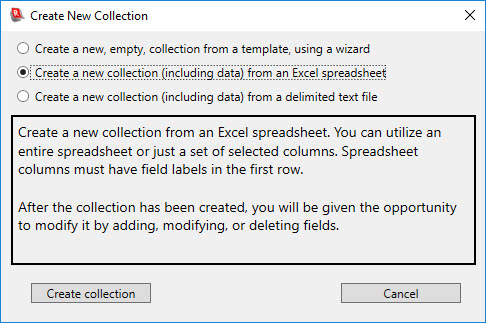
Click the Create collection button. You will next be given a file selection dialog. Use the dialog to navigate to and select the source file (Excel spreadsheet or text file, depending upon the choice you made in the previous step).
After the spreadsheet or file has been read, the following dialog will be displayed (though the field names shown will be different from this example, and will reflect the collection data you are importing):

At the top of the dialog, specify the name for the new collection.
In the central section of the dialog is a list of all the fields found in the file just read. If there are more than are initially visible, you can use the scrollbar at the right to scroll down to the other fields. Each field’s name is taken from the column name in the source. A checkbox to the left of the field name can be used to include/exclude the particular field from the collection. Turn off the checkbox of any field that you do not want to include.
A data type is shown for each field. These data types are a “best guess” on the part of the program as to which of the different data types the corresponding field should be. The program scans the data in each field in order to make this guess. If the field appears to contain text values, the program assigns one of the three text types (short, one-line, or multi-line), based on the length of the longest texts found in the data for this field. If the field appears to contain dates, the date type is assigned. If the field appears to contain numbers, the number type is assigned. Scan these “best guess” data types, and use the drop-down lists to change the data-type assignments for any fields where the best guess is not correct. Click the preview data button to view a few values from the corresponding field in the Preview pane (below the field list). Looking at the data values can help remind you of the kind of data held in this field, and thereby help you in choosing the appropriate data type to assign.
It is worth noting that having the “correct” data type for a field is not all that critical. Recollector uses data types to help provide the right size data entry field in the data-entry window, and also to provide more intuitive results when sorting. (For example, if you sort by date, you expect the results to be sorted chronologically and not alphabetically.) So if you have a field that holds prices, nothing terrible will happen if you define this field to be a text field or a number field, rather than a currency field. But it is still a good idea to try to choose the data type that best corresponds to the actual kind of data that is stored in a given field. It is important to know that you are not locked into the data-type choices that you make at this point. At any later time, no matter how much you have already used your collection, you can modify the field definitions and change a given field’s data type.
|
Three notes on the initial data-type assignments: 1.
The program never chooses currency or dimension
as a best guess, so for fields that hold currency values or dimension
measurements you will generally want to choose a data type of currency or dimension, as appropriate, to
override the best guess (which, in most cases, will have been set to the number data type). 2.
The program never chooses image/audio/video as a best guess, so if you have a field that is
used to contain filenames of images (or audio or video clips), then you will
want to change the data type to image/audio/video
for such a field (which will have been assigned one of the text data types as a best guess). 3. If you are creating a collection from an Excel spreadsheet and the spreadsheet contains a column whose cells are formatted as Excel dates, Recollector will, in general, choose date as the best-guess data type. However, if some of the cells in the column have unusual dates (many years ago, or dates off into the future), the program might give a best-guess assignment of either number or one of the text data types. If you display some of the column’s values (by clicking on the preview data button), you will typically see numbers (e.g. 34488) if the data type is set to something other than date. If you select date as the data type for the field, you will see that the preview values change to dates (e.g. 3-Jun-1994). This is a good indication that you should select date as the appropriate data type for such a field. |
Every Recollector
collection includes an “ID #” field.
The field does not necessarily have the name ID #, but the field – whatever its name – functions as the
collection’s ID # field. Each
record in the collection is expected (though not required) to have a unique
value in its ID # field, allowing this field to be used to create
hyperlinks between records. The section
near the bottom of the Import New
Collection dialog is used to control how the ID # field will be
created.
If the spreadsheet
or file that you are using to create the collection does not already include a
field that is suitable to use as an ID # field, you can request that the
program create an additional field (named ID
#) for this purpose. If you do this,
the program will normally assign sequential numeric ID # values (1, 2, 3,
etc.) to the records in the new collection.
You can turn off the Generate
sequential ID numbers (1,2,3 …) checkbox if you do not want ID numbers
generated. In this case, the program
will still create a new ID # field, but all the values will initially be
empty.
If the spreadsheet
or file that you are using to create the collection already contains a field
that is appropriate to use as an ID # field, pick the Use the specified field as the ID # field radio button and select
the desired field from the adjacent drop-down list.
The following
picture shows what the window from the prior example looks like after a new
collection name has been entered, a few data types have been changed, the
preview button for the field named Date
has been clicked, and an existing field (Entry
num.) has been selected as the ID # field:

When you have
completed reviewing the fields for the spreadsheet or file to be imported, and
making whatever choices you would like (such as: modifying the collection name,
excluding certain fields, changing data types, choosing an ID # field),
click the OK button. The program will then prompt you for the name
and location of the new collection file that it will create. When the new collection file has been written
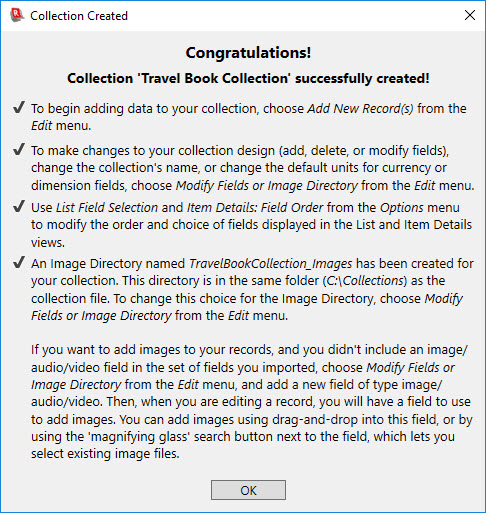
out, the program will open the new collection, and a “Congratulations” message
will suggest additional steps that you might want to take to customize your
collection.
Notes:
- The filename you specify when saving your collection file should have an extension of “.xml”. (Recollector stores the database for a collection in a single file, using what is called “XML” format. This is a file format widely used to store structured data. It is a text file format; the contents of an XML file can be viewed in any text editor. An XML file can also be displayed in a web browser. Note: Do not modify this file in an external program, as any changes you make to it may cause it to be unreadable by Recollector.)
- You will not have to remember the name or location of your collection file, as Recollector will remember this information for you. (But it is not a bad idea to know where your collection file is stored!)
- You will be able to make changes to the setup of your collection database, even after you have begun adding data. The choices regarding your collection database (field definitions, currency/measurement-unit choices, collection name, and image directory location) can all be modified later.
- The size of the collection file depends upon the number of fields and the number of data records in the database. However, even a collection of 1,000 records is unlikely to require more than about 2 megabytes of storage. Therefore, disk space is not likely to be a problem, unless you choose to store your collection on a very low capacity disk.
Back to: Recollector - Home Page