Subsetting the
Collection
Normally
Recollector displays, in its List View and in the Image Gallery, all the
records in your collection. However, if you
wish to look at only a specific part of your collection – for example, all
items acquired before 1990 – you can choose to restrict the display to just a
subset of the full collection. The
collection window and all its functions behave the same when a subset is active
as they do when the full collection is displayed; the only difference is that
the only records shown are those which meet the criteria defined for the
subset.
Recollector
provides two kinds of subsetting:
·
Search
subsetting – This simple kind of subsetting is set up from Find on the Search menu,
when viewing the List View or the Image Gallery. It can be used to quickly reduce the set of
displayed items to just those in which a particular text (usually a word or
phrase) is found, either in a particular field or across all fields. This kind
of subsetting is temporary: You set it up within a session, but it is not
remembered. The next time you run
Recollector you need to use Search >
Find again to set up the same search subset.
·
Full
subsetting – This kind of subsetting is more elaborate than search subsetting.
With full subsetting you can define more complicated inclusion criteria. These
kinds of subsets are not temporary; they are retained as part of your
collection, and do not need to be redefined each time you run Recollector.
Search subsetting
and full subsetting are independent capabilities. You can use both at the same
time, where, for example, a full subset would reduce the set of displayed items
based on the subset’s criteria, and an additional search subset would further
reduce the set of displayed rows to just those that include a particular search
text.
This chapter
describes both search subsets and full subsets.
Search
subsets
A search subset
reduces the set of displayed items to just those that include a specific text
(usually a word or phrase). You must be in the List View or the Image Gallery
to set up a search subset. Choose Find
from the Search menu to set up a
search subset:
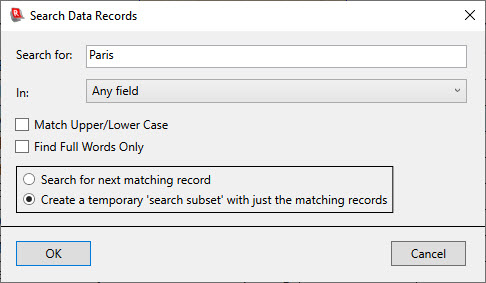
Enter the text
that needs to be found in a record to qualify for inclusion in the search
subset. Also select which field the text must be found in. This can be Any field, Any of the fields
in the list display, or a specified single field. In the example shown here, a record will be
included in the search subset if “Paris” is found anywhere in the record. Since
the Match Upper/Lower Case checkbox
is turned off, a record will be included if it includes “paris”,
“Paris”, “PARIS”, etc. In addition,
matching does not need to exactly match a full word. So
if the word “Parisian” occurred in a record, it, too, would be included in the
subset. If you only want to match the full word (“Paris”) but exclude partial-word
matches (“Parisian”), turn on the Find Full Words Only checkbox. If you
choose a specified field, and that field is a short text or one-line text
field, you can type a few characters into the Search for text-entry box
and then hit the ESC key on your keyboard. This will cause the program to
identify values in the selected field, in all records in the collection, whose
beginning characters match the characters you typed in (case-independent
matching is done). If just one matching value is found, it will automatically
be filled into the Search for text-entry box. If two or more matching
values exist, a pop-up window containing a list of all matching values will be
shown, and the value you select from this list will be filled into the Search
for text-entry box.
Choose the second radiobutton (Create a
temporary ‘search subset’ with just the matching records) and click OK.
Immediately the list will be reduced to just those records that meet the
specified criteria. The fact that a search subset is active is shown by a note
in the lower right corner of the collection window:
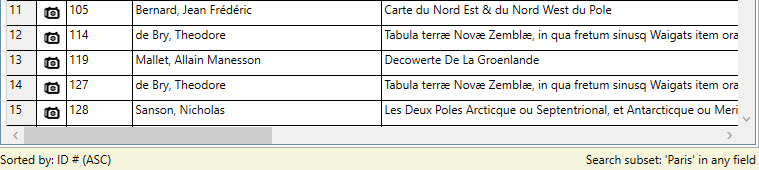
A search subset
stays in effect until you do one of the following:
·
Turn
of search subsetting by choosing Clear
search subset from the Search menu.
·
Choose
Show full collection (no subsetting)
from the Subset menu.
·
Select
a different criteria for the search subset by using
the Find dialog invoked from the Search menu.
Full
subsetting
The full
subsetting capability of Recollector lets you define a set of conditions that
must be met for a record to be included in the subset. You can define multiple
such subsets for a collection. You give each subset a name, and, once defined,
you can switch to any these subsets by choosing its name from the Subset menu. Subset definitions are saved as part of your
collection, so the next time you run the program, any subsets that you defined
previously are available to be selected from the Subset menu.
To define a new
subset, or to modify or delete an existing subset, pick Manage Subsets
from the Subset menu. The following dialog box will be displayed:
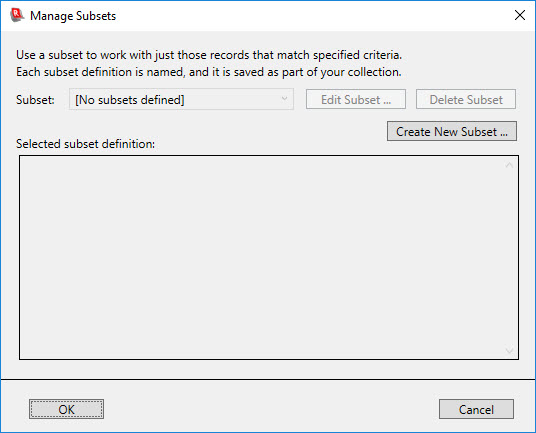
The dialog box
shown above, mostly empty, is what you will see before any subsets have been
defined. If any subsets have been
defined for the collection, then the dialog will be filled in, reflecting the
definition of one of the existing subsets. You can use the drop-down list to
switch the display to show the definition of a different subset. Here is an example of what the dialog box
looks like when one or more subsets have been defined:
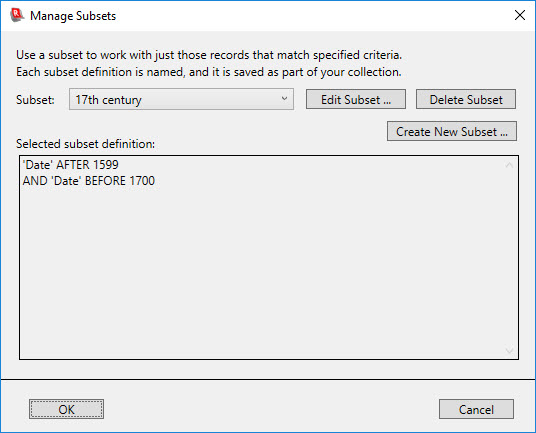
To create a new
subset, click on the Create New Subset button. This will bring up the
following dialog box:
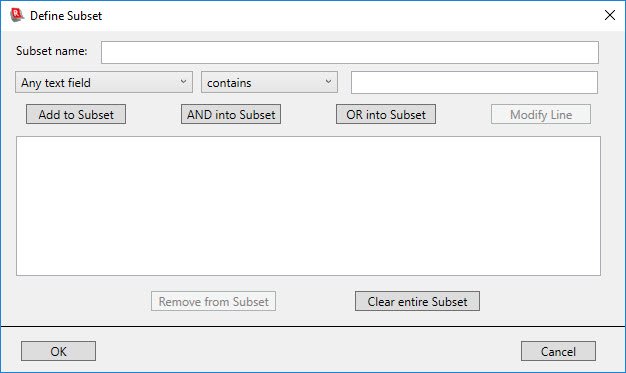
Enter a name for
the new subset in the Subset name
field. The name you specify will show up
on the dropdown menu that appears when you click the Select a Subset sub-menu on the Subset
menu of the collection window. If you
want, you can also create a hierarchy of sub-menus for your subsets. This is useful if you have many subsets,
since it lets you group the subsets into multiple sub-categories, so that any
single dropdown menu will have only a reasonably small number of choices
displayed. To specify that a subset
should appear on a nested sub-menu, precede the subset name by a sub-menu name
and a colon. For example, the following
subset name:
Countries:England
would cause there
to be a Countries sub-menu under the Select a Subset menu, and then an England menu item on the Countries sub-menu. If you subsequently defined another subset,
with the name Countries:France, the France menu item would join the England
menu item on the Countries sub-menu.
This kind of
sub-menu hierarchy can be extended to additional levels by including additional
colon-separated components as part of the subset name. So, for example, if you added a subset with
the following name:
Countries:Scandinavia:Norway
a Scandinavia sub-menu would be added to
the Countries sub-menu, and the Norway menu item would be placed on the Scandinavia sub-menu. You do not need to separately create the
different levels of such multi-level menu hierarchies. When the program encounters such a
multi-level menu name, with multiple, colon-separated components, it creates
whatever intermediate sub-menus are necessary to provide the full menu
hierarchy.
Note: Whitespace
is ignored around the colons in these multi-level subset names. So Countries:England and Countries
: England are considered the same.
After the subset
name has been entered, specify the criteria that must be met for a record to be
included in the subset.
There are four
kinds of criteria:
·
Criteria
for text fields (applies to short text, one-line text, multi-line text and
image/audio/video fields) – A text field condition specifies whether the text
field contains, does not contain, is (fully matches), is not, begins with, or
does not begin with the specified text. (Case does not matter; a lower-case
word “chart” will match “Chart”, “CHART”, etc.)
·
Criteria
for numeric fields (currency, dimension, or number fields) – A number condition
specifies whether the field contains a value that is less than, equal to, or
greater than a specified value.
·
Criteria
for the ID # field. – The ID # field is treated the same as a text field,
except it also allows you to specify two numeric conditions, less than and greater than. Since ID # fields are usually numbers, the numeric
conditions let you specify conditions like “ID # is greater than 200”. If an ID # value begins with a number and is
followed by non-numeric characters (for example: “21B”), the numeric leading
part (21, in this example) will be used when deciding whether the numeric
condition is met. If an ID # value is
completely non-numeric, or begins with non-numeric characters (e.g. “ABC-22”), a numeric condition for including records in
a subset will always be treated as false (excluding the record).
·
Criteria
for date fields – A date condition specifies whether the field contains a date
that is before, in, or after a specified date. (Dates can be single years, or
fully specified dates, e.g., “25-Feb-2007”). The choice of “in” is intended
primarily for specifying single years. For example, if you want to include in
the subset all items that you acquired in 2002, you could specify that the
“Date acquired” field be “in” 2002. This will pick up all records with a 2002
year in the “Date acquired” field, regardless of whether they also include month
and day data.
Alternatively, a condition can specify whether a given field is empty or is not empty. This can be useful if you want to define a subset based on whether data is missing for a particular field.
To define a new condition:
- Select a field name from the drop-down list at the upper left. You can also select the initially displayed choice of “Any text field” which will allow a text match against any of the text fields in your collection.
- Select the desired relationship from the next drop-down list.
- Enter the comparison value in the text-entry box at the right. (If you specified “is empty” or “is not empty” in the previous step, the text-entry box will be hidden, since it does not apply in these cases.) If you specify a field name in the first step (as opposed to selecting “Any text field”) and you specify “is” as the relationship in the second step, then, if the selected field is a short text or one-line text field, you can enter a few characters into the text-entry box and then hit the ESC key on your keyboard. This will cause the program to identify values in the selected field, in all records in the collection, whose beginning characters match the characters you typed in (case-independent matching is done). If just one matching value is found, it will automatically be filled into the text-entry box. If there is more than one matching value, a pop-up window containing a list of all matching values will be shown, and the value you select from this list will be filled into the text-entry box.
- Click the “Add to Subset” button. The condition will be added to the list shown in the window.
If you have multiple conditions, they can be connected by “AND” or by “OR” operators. Adjacent AND conditions must all be met for a record to be selected for inclusion. An OR operator means that if the prior condition (or group of AND-connected conditions) is not satisfied, then the subsequent condition (or group of AND-connected conditions) will be tried. Following is an example of a filled-in dialog box showing two conditions connected with an AND operator:
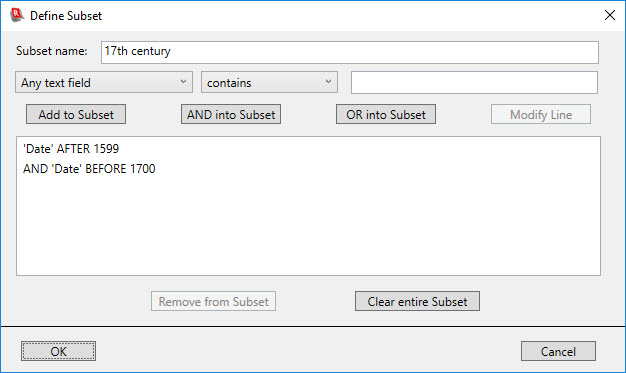
This specification will cause the subset to include all 17th-century items.
Note: If you have specified a condition using “is” or “is not” for the relationship, then you can specify multiple comparison values by including the desired values separated by a vertical bar [|] character. The following image shows a definition which specifies two values (Fine and Excellent) for a field named Quality. Any record with a value for Quality of either Fine or Excellent would meet this condition.

To modify a line of the subset specification, select it in the list, edit the terms of the condition at the top, and then click the Modify Line button.
To remove a specific condition from the subset specification, click the condition in the list and click the Remove from Subset button.
Click the Clear entire Subset button to get rid of all the lines in the subset specification.
Filling in values
when you use a subset
Normally you specify the comparison values for subset conditions when you define the subset. However, Recollector lets you defer specifying a value until the moment when you choose to use a subset. If you specify a question mark (‘?’) as a comparison value in a subset condition, then when you switch to using that subset the program will prompt you for the value you want to use. This allows you to use the subset for a variety of different conditions, without having to modify the subset definition. You can specify up to four conditions with ‘?’ values in a subset definition.
Following is an example of using this “fill-in later” capability. Notice that the subset definition uses three conditions, and for two of these a ‘?’ character is supplied as the comparison value:
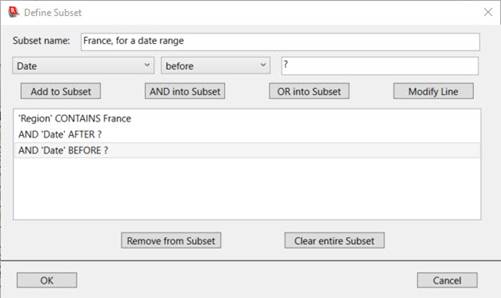
When you select this France, for a date range subset from the Select a Subset menu, Recollector will prompt you to fill in the values for the two conditions that have ‘?’ values in the subset definition:
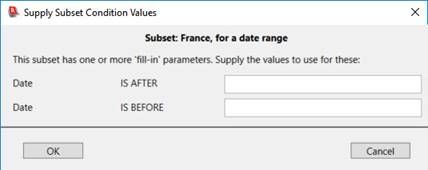
If you fill in the two text boxes with 1800 and 1850, then the subset will be defined as if those values had been specified when you originally created the subset definition. The next time you choose to use this subset (by selecting it from the Select a Subset menu), in the same session, the prompting dialog will initially display the values previously chosen:
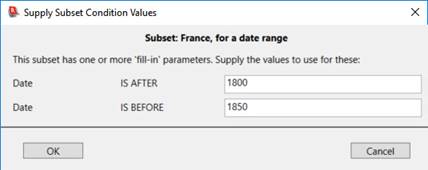
You can modify one or both values to cause the subset to include a different date range.
If you choose to use a subset when generating a printed report or when generating a web site, and the subset is one that uses ‘?’ values, you will be prompted for the values to use just before the report or web site is generated.
Selecting a subset
Use the Select a Subset sub-menu on the Subset menu to switch to any of the subsets you have defined. When you click on Select a Subset a sub-menu will appear showing the names of all the available subsets. Click on the desired subset.
To turn off subsetting, choose Show Full Collection (no subsetting) from the Subset menu. This will return the collection window to a display of all the records in your collection. Turning off subsetting will also terminate any search subset, if one was in effect. No subset definitions will be lost when you turn off subsetting; you can switch back to using a subset at any time by again selecting a subset from the menu.
If your collection has more than one subset defined, then when a subset is currently in effect you will see two additional buttons at the top of the collection window to the left of the Edit button: Previous Subset and Next Subset. You can use these buttons to step through your subsets, rather than having to return to the Subset > Select a Subset menu to move to another subset. The order in which subsets are stepped through is the same order in which they are shown on the Select a Subset menu, which is basically alphabetical order by subset name.
Choose Display Subset Definition from the Subset menu to bring up a window showing the subset criteria currently in effect. If no subset is currently active, this will be reported.
Linking a field profile to a subset:
Normally switching to a subset does not change the set of fields displayed in the List View. However, if you wish to customize the List View fields for a particular subset, you can do this by creating a Field Profile whose name is Subset: subset_name where subset_name is the name of the associated subset. So, for example, if you created a subset named large marbles, then if there is a field profile named Subset: large marbles, that profile will be immediately applied to the List View when you switch to the large marbles subset. (Case is ignored when evaluating the profile name, and adding a space - for readability - after the colon is optional. So, for example, a profile named SUBSET:Large Marbles would also be recognized as a match for the large marbles subset.)
If you define a field profile whose name is Subset: none then that profile will be applied automatically to the List View when you switch from a subset to no subsetting (by choosing Show Full Collection (no subsetting) from the Subset menu), or when the collection is initially opened. It is recommended that if you do define field profiles for one or more of your subsets, you also define a Subset: none profile. That way, the next time the collection is opened (which always results in the List View being displayed, with no subsetting), the List View will not inadvertently display just the fields from a subset profile, if a subset (and its associated profile) happened to have been in effect when you previously closed the collection or exited from Recollector.
Notes on operating with a subset defined:
- When
a subset is defined, the label at the top of the collection window will
indicate this and will show how many items are in the subset out of how
many items are in the entire collection.
- Operations
that operate on the whole list (printing all records, exporting, searching,
and sorting) will only operate on the records that are included in the
current subset.
- When
a subset is active and you add new records, a newly added record may or
may not be in the subset, depending upon the value of its data
fields. If the newly added record
is excluded from the subset, you will not see the record appear in the
List View or Image Gallery when you complete the data-entry
operation. Because of this, you may
think that the entered data has not gone into the collection; however, it
will successfully be added to the collection (even if not to the current
subset).
Examples of subsets
Here are various examples of subset definitions, to help give an idea of how subsetting can be used.
Name
|
Conditions
|
Notes
|
|
17th
century |
'Date'
GREATER THAN 1599 AND
'Date' LESS THAN 1700 |
|
|
Wish
List |
'Status'
IS wanted |
Uses
a field (Status) to differentiate between ‘present’ & ‘wanted’ items. |
|
Items
with images |
'(Images)'
IS NOT EMPTY |
|
|
Coins
acquired in 2006 |
'Date
acquired' IN 2006 |
Using simply a year (no month or day) with the IN
operator correctly matches any date in the specified year. |
|
Texas
Maps |
'Region'
CONTAINS Texas OR
'Title' CONTAINS Texas |
Tries
to also include maps where region might be broader (e.g.
U.S. Southwest), but Texas is given significance as part of the map title. |
Back to: Using the Collection
Back to: Recollector - Home Page