Recollector User’s Guide
Viewing
your collection on an Android device
The Recollector App is a freely available app for Android smartphones or tablets that works in conjunction with the Windows version of Recollector. With the Recollector App you can carry your collection database with you, on an Android smartphone (or Android tablet). Note: There is an equivalent version of the Recollector App that runs on Apple’s iPhone, iPod touch and iPad. See the User’s Guide page on the iPhone/iPod/iPad version of the Recollector App for more information.
The Recollector App works as a read-only viewer for your collection data. You do not add or edit data with the App; you continue to update your collection using the version of Recollector that runs on your PC. But any time that you want to send a copy of your collection to your Android device, you can now do that, and take your collection data with you on the road, on a device that fits in your pocket.
There are three steps you need to take to use the Recollector App:
1. Install the Recollector App on your Android device.
2. In the Windows version of Recollector, save your collection data for export to the App.
3. Move the export file created in the previous step to your Android device.
Once you have completed these steps, you will be ready to view your collection data on your Android smartphone. The following sections describe these three steps in more detail.
Installing the
Recollector App on your Android device
The Recollector App is available, free, in the apps section of Google Play. Search in Google Play for “Recollector”. The Recollector App is aimed at Android Versions 2.2 or later.
Installing the Recollector App is no different from installing any other Android app. You just locate it at Google Play (search for “Recollector”) and click “Install”. This step only needs to be performed once. Even if you want to download and view multiple collections, you only need one copy of the Recollector App. Of course, if updated and enhanced versions of the App are released, then you may re-install the App to bring it up to the latest version.
Once installed, you will see the Recollector icon among your applications. If you start the Recollector App, you will see only the sample collection (a small collection of polar maps) that ships with the application. The sample collection is just intended to let you get familiar with the Recollector App before you have moved your own collection data down to your Android device. Read the next sections to learn how to export your collection data from Recollector, running on your PC, and move it to your Android device. Once a collection database has been moved to the Android device, the Recollector App will find your collection and let you start viewing it.
Saving your
collection data for export to the Recollector App
Choose Export for download to the Recollector App from the File menu of the collection viewer window to generate a data file for downloading. If there is a currently active subset in effect (either a regular subset or a search subset, or both), you will be asked whether you want to export just the records in the subset or all the records in the collection. The export will produce a single file that contains both the text and image data for all the records in the currently open collection (or in the current subset of that collection if you requested to limit the export to just the records in the subset).
If you are not using Dropbox, keep a note of the name of the export file and the directory in which it was placed, since you will need to navigate to this file later, when you are transferring it from the PC to the Android device. But note: If you connect your Android device to your PC with a USB cable (see “Approach #2” in the section, below, on moving the export file to your Android device), then you can choose the appropriate folder on the device’s disk as the directory for the export operation. This way, you will avoid having to move the file to your device as a separate step, since it will be written directly to the device’s storage in this export step.
The program will also ask you to specify how images should be chosen for inclusion in the export file:
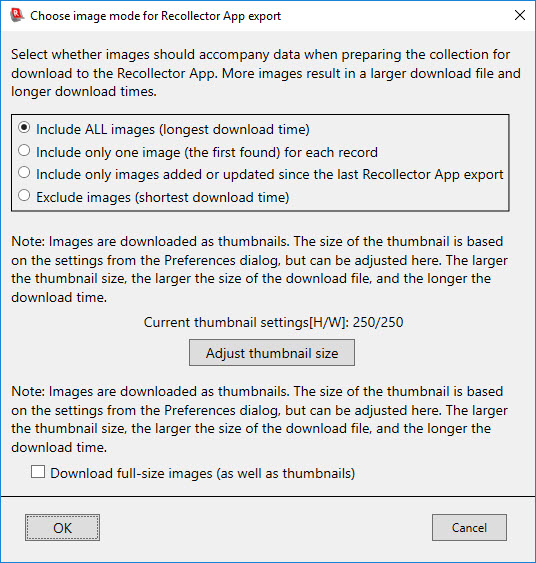
When your collection is sent to the Recollector App, images are sent in thumbnail format. Even so, particularly for collections with many images, the images can add considerable size (and, consequently, download time) to the export file. Therefore, you are given several options for the handling of images:
· Include ALL images – This choice is appropriate for the first time you download a particular collection. Thumbnails for all of the collection’s images will be included. Consequently, this choice creates the largest possible export file and will require the longest download time.
· Include only one image per record – This choice may make sense if you have many images with each record, yet you don’t anticipate a need for all of that imagery when looking at your collection with the Recollector App. The program will only include the first image found for a record and skip the other images.
· Include only images added or updated since the last export – This choice is usually the most sensible option for second and subsequent downloads, when you just want to get your Recollector App version of the collection database in sync with your PC version. With this choice, the program only includes images that are new or whose file modification date differs from the modification date when the image was last downloaded for export to the Recollector App. Note: This choice will be disabled the first time a collection is exported for download to the Recollector App, since no prior download history will be available.
· Exclude images – This choice makes sense if you are not interested in bringing images along with the data from your collection. It also makes sense if you know that you have not added or updated any images since the last export to the Recollector App. In this case (when no images have been added or changed since the last export), you would produce the same image-free export file as you would get from the previous choice (include only images added or updated since the last export). However, processing speed for generating the export file will be faster if you specify up front that images are to be excluded.
Notes regarding images:
· The size of the thumbnail images created for export is initially set according to the thumbnail image size specified in the Preferences Dialog (opened from the Options menu). Depending upon the size of the screen on your Android device, you may wish to increase or decrease the thumbnail size settings before proceeding with the export operation. The note in the dialog also shows you the current maximum thumbnail height and width settings. To change these settings, click the Adjust thumbnail size button and specify modified sizes on the subsequent dialog. It should be noted that the file size for an export file increases exponentially with the thumbnail size. A thumbnail image size of 400x400 pixels will require approximately four times as much space (and have a four-fold longer download time) as a 200x200 pixel thumbnail.
· You also have the option of downloading images in their full resolution, as well as in thumbnail format. This, of course, may produce an extremely large export file and a very long download time. The Recollector App will, in any case, display your images from the downloaded thumbnails. However, the Recollector App lets you long-click on an image, in which case the image is sent to the Android Gallery (photo viewing) application. If you downloaded full images (as well as thumbnails), then, in Android Gallery, the full resolution images are displayed, and, even on the small screen of a smart phone, you can pan and zoom, sliding the image around to view different sections of the image at a higher resolution. Because of this capability, you may want to consider downloading your collection with full-size images. However, be sure that the SD card on your Android device has adequate free space for the large export file. You might also want to consider attaching your Android device to your PC (via a USB cable), because transferring a large file will, in general, be much quicker when transferred to a USB-mounted SD card than will downloading the same file over the internet.
· The Recollector App gathers all images for a given collection into a single folder on the Android device. Therefore, images within a single collection are identified only by their simple filename (e.g. 123.jpg), and not by the full pathname (e.g. C:/myimages/mapcollection/123.jpg) that they had on the PC. The PC version of Recollector allows you to include images from different directories. Therefore, on the PC, it is possible (but not likely) that you have two data records in a collection pointing to two image files with the same simple filename but different full pathnames (e.g. C:/myimages/mapcollection/123.jpg and C:/added_images/123.jpg). This case will not be handled properly by the Recollector App. The export file will contain only one of the two images, and both records that pertain to the two original images will, in the Recollector App, point to the same image. In other words, one of the two records in the Recollector App will include an inappropriate image. This is a very unlikely event, since one would not typically have two different images, for two different records in your collection, with the same simple filename. To make explicit a practice that you probably are already following: Use a distinct simple filename for each image in a collection (regardless of what directories the images are stored in).
Note: Audio and video clips that are included in your collection are not exported to the Recollector App. Only image files referenced in image/audio/video fields are exported.
Normally the program exports data for all fields in your collection (other than image fields, if you requested no images to be included). However, only fields included in the List View are exported if you are in Limited Item Details mode. This is the mode that you can turn on with the menu toggle on the Options menu: Limit Item Details to Only Fields Shown in List. In this mode, only those fields that are included in the List View are shown in the Item Details view. And, similarly, when you are in this mode, only those fields shown in the List View will be included in the export file for the Recollector App. (Images are treated specially: They are exported based on the choices described above for handling images in the export file, regardless of whether the image fields are included in the List View.) This special handling of export when in Limited Item Details mode provides a way for you to export just a specific set of fields (rather than all of your collection’s fields), when sending your collection to the Recollector App. If you are in Limited Item Details mode, the program will ask you, before executing the export, whether to export just the fields shown in the List View, or all fields in the collection.
Once you have chosen the image-inclusion strategy, the program will write out the export file. Progress dialogs will report the records and images as they are written.
Moving the export file to your Android device
There are two methods that can be used to move the export file to your Android device.
Approach #1: Use Dropbox (the recommended approach).
Dropbox is a popular file sharing service (available for free, but with paying options for users who desire more storage space for shared files). If you have Dropbox installed on your PC, you can also connect to Dropbox from the Recollector App running on your mobile device. The export file needs to be placed in the Apps/Recollector folder of the Dropbox folder on your PC. (The Apps/Recollector folder is automatically set up by Dropbox when you first connect to Dropbox from the Recollector App on your Android device.) You can specify the Dropbox/Apps/Recollector folder as the target directory for your export when you choose Export for Download to Recollector App from the File menu on your PC. Since Recollector remembers where you last placed an export file, you will only have to navigate to the Dropbox/Apps/Recollector folder once, since on subsequent exports the Save File dialog will automatically start out positioned at the Dropbox/Apps/Recollector folder. If you use the suggested file name, then both the file name and its location will be initialized correctly in the Save File dialog, so you only need to click the Save button. A detailed description of how to use Dropbox to transfer your collection file can be found at the following web page: http://www.maprecord.com/DropboxWithRecollector.html.
Approach #2: Connect your Android phone to your PC with a USB cable.
Android devices generally come with a USB cable which can be used to connect your Android device to your PC, via a USB port. Follow the documentation that came with your Android device for specific instructions on how to use a USB cable to connect your device to a PC and mount your device’s storage as a removable disk drive on the PC. Once mounted, you can use the Windows File Explorer to drag and drop your collection export file from your PC to the following folder on your phone’s file system:
/Android/data/com.Maprecord.Recollector/files
Depending upon your device, Windows File Explorer may show this path as descending from a level or two deeper in the file system. The following image, for example, shows the Windows File Explorer set to this location when a Samsung Galaxy S22+’s storage is mounted as a Windows file system:

In this case, one can see that the Android folder is mounted as a sub-folder of Internal storage, which itself is shown as descending from the Galaxy S22+ device. But, in general, it should be easy to locate the Android/data/com.MapRecord.Recollector/files folder using the Windows File Explorer.
Notice that the files folder contains a sub-folder named Recollector. But do not put your export file into this sub-folder; put it directly into the files folder.
If you plug your device into your PC and mount the device’s storage as an external disk prior to exporting, then you can specify the /Android/data/com.Maprecord.Recollector/files folder as the target directory for the export step. This way you avoid having to move the file from your PC to your device as a separate step, since it will be written there directly by the export step.
Using the Recollector App
Once you have moved your collection export file to the storage of your Android device, the Recollector App will be able to locate the file. For instructions on how to use the Recollector App’s features, see the Recollector App’s User’s Guide, which you can access within the Recollector App by clicking the Menu button and choosing Help.
Back to: Recollector - Home Page